
How to setup own branding? Print
- 1089
To setup your own white label store follow below steps to configure it.
1) Login as your distributor account here https://dashboard.greenclick.cloud/adminportal
2) Go to Distributor Manager
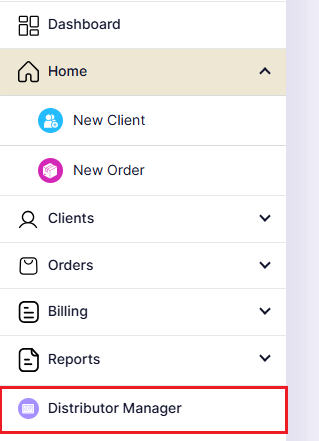
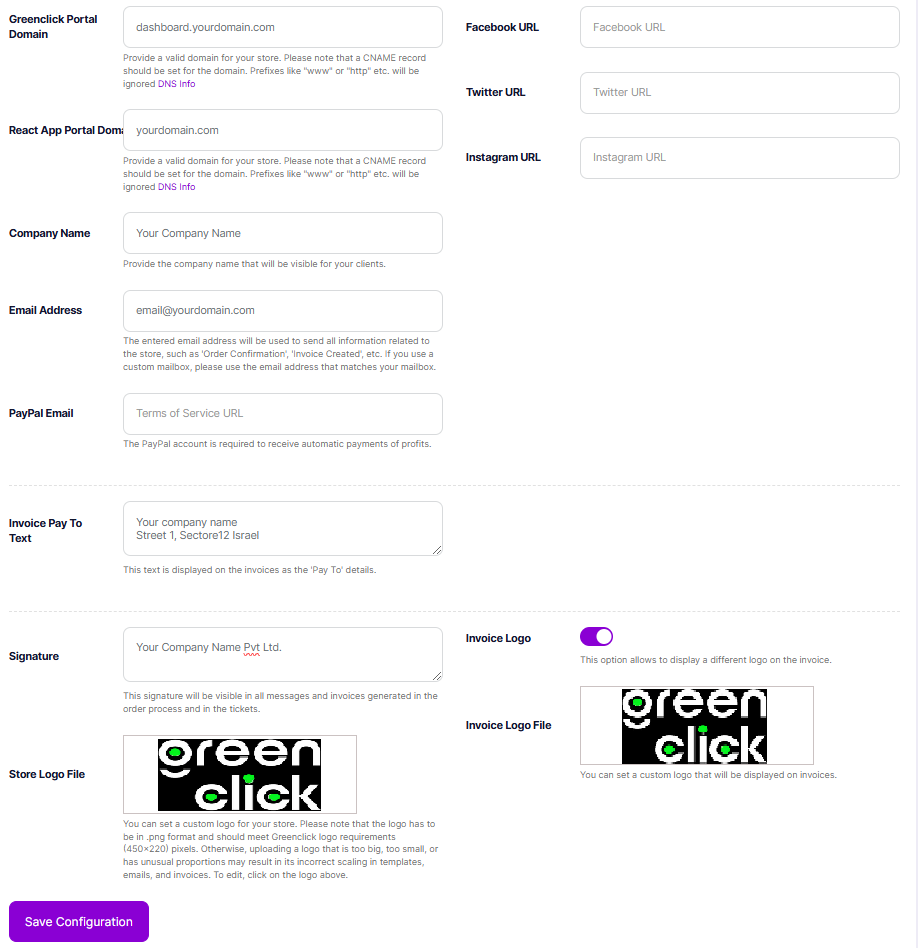
3) Under Configuration you will get options to setup your own store/branding by adding your domain (yourdomain.com) or sub domain (client.yourdomain.com) with your brand logo and other details.
- GreenClick Portal Domain: Enter a valid domain or subdomain for clientarea portal.
- React App Portal Domain: Enter a valid domain or subdomain for main frontend store.
- Company Name: Enter your company name for branding
- Email Address: Enter your email address
- PayPal Email: Enter your PayPal account to receive automatic payments of profits.
- Invoice Pay To Text: Enter pay to text. It will display on your customers invoices
- Signature: Enter your company signature to display on email notifications
- Store Logo File: Upload your store logo
- Invoice Logo: Enable invoice logo to show on invoices
- Invoice Logo File: Upload your invoice logo
- Facebook URL: Enter Facebook profile link to show in website footer
- Twitter URL: Enter Twitter profile link to show in website footer
- Instagram URL: Enter Instagram profile link to show in website footer
- Save Configuration
After saving the configuration, system will auto generate the required configuration and TXT records for your store. On the top of same page you will get a section. Expand that section to see the all required DNS records that you have to add with your domain DNS manager.
